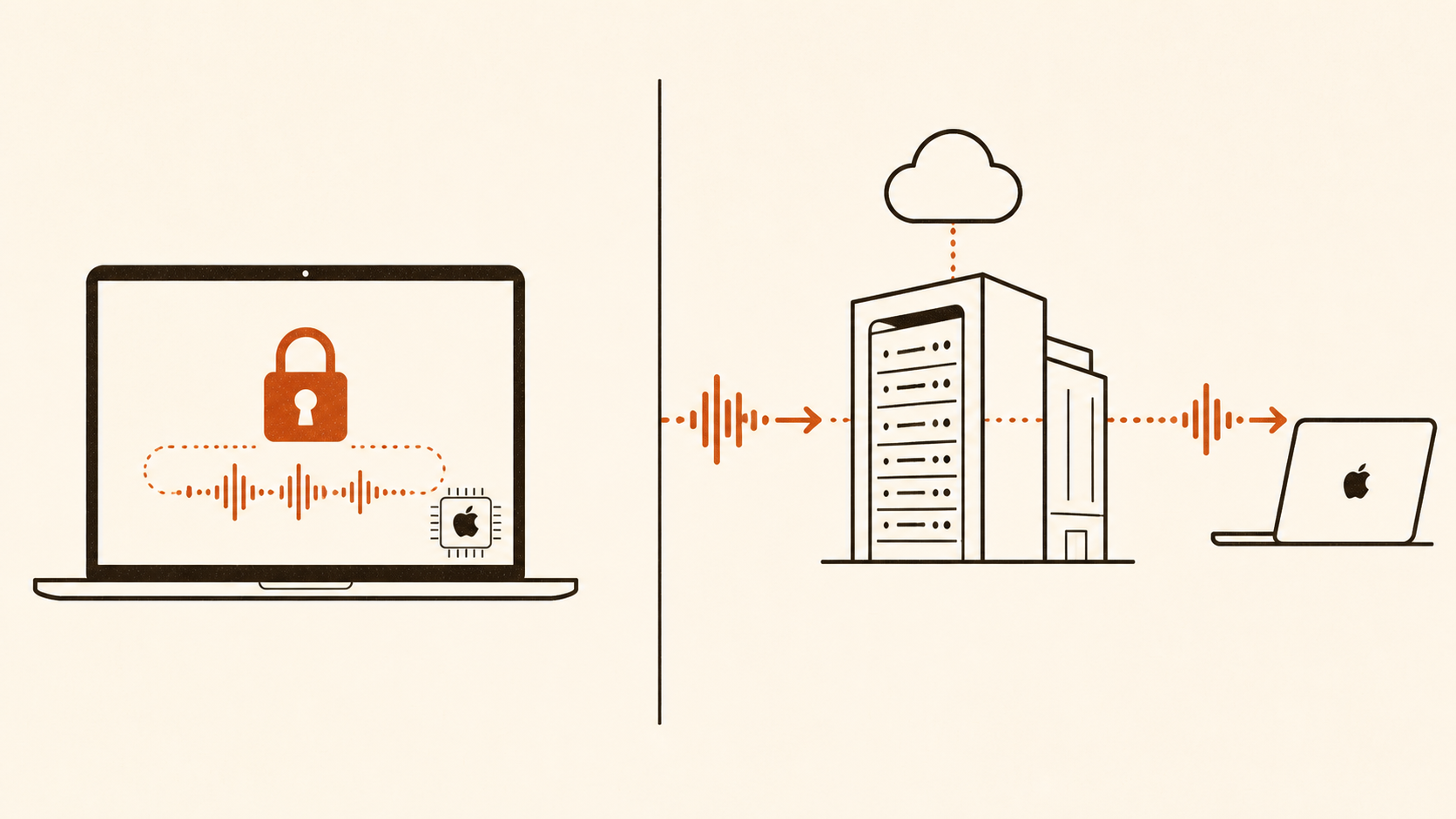
Sometimes. The reliable answer is not your Mac model or the language you chose. It is the sentence below Dictation in System Settings.
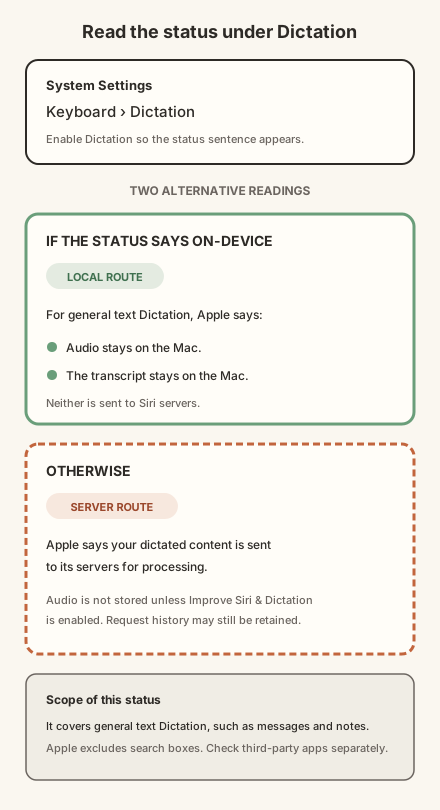
Open System Settings > Keyboard, scroll to Dictation and read the status text. If it says your voice inputs and transcripts are processed on your device and not sent to Siri servers, general text Dictation stays on the Mac. Otherwise, Apple says the things you dictate are sent to its servers for processing. [1] [3]
That distinction matters because sending audio, storing audio and retaining a transcript are three different things. Apple's settings and privacy notices deal with each one separately.
Let the status text answer the question
Apple's privacy notice uses unusually direct wording:
"When you use Dictation, your device will indicate in Keyboard Settings if your audio and transcripts are processed on your device and not sent to Apple servers. Otherwise, the things you dictate are sent to and processed on the server, but will not be stored unless you opt in to Improve Siri and Dictation."
Apple's notice, quoted above, is the reference for both routes. [1]
The first half describes on-device processing. For general text Dictation, Apple says neither the audio nor the transcript is sent to Siri servers.
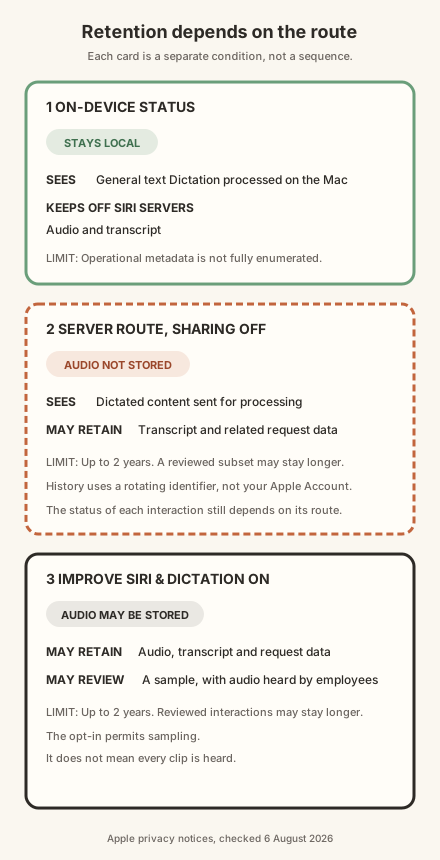
The second half describes server processing. Your dictated content travels to Apple so that its systems can turn it into text. Apple says it does not store the audio unless you have opted in to Improve Siri & Dictation. That does not mean nothing is retained. Apple's request history can include transcripts and related request data.
Do not infer the route from an M-series chip alone. Apple notes that Apple Silicon Macs let you type while dictating, but it does not present that as a privacy test. Dictation features also vary by language and region. The status text accounts for the configuration in front of you, which is why Apple tells you to check it. [3]
What Apple may retain on the server path
When a Dictation interaction goes to Apple, the privacy notice says its request history can include transcripts and related request data. Apple associates that history with a random, device-generated identifier which rotates several times per hour rather than with your Apple Account or email address. It may retain the data for up to two years to improve Siri, Dictation, Search and other language-processing functions. A small reviewed subset may be kept longer. [1]
Related request data can include the request category, whether it completed, device specifications and configuration, and performance statistics. Approximate location may also be included when Location Services is enabled for Siri. [1]
There is an important boundary here. Apple's notice says on-device general text Dictation does not send the transcript to Siri servers. It also says Apple stores related request data, but it does not clearly list which metadata fields accompany each on-device Dictation interaction. The defensible reading is narrow: the on-device status protects the voice input and transcript; it is not a promise that the Mac sends no operational data of any kind.
Improve Siri & Dictation changes the storage rule
The second setting to check is System Settings > Privacy & Security > Analytics & Improvements > Improve Siri & Dictation.
If it is off, Apple says it does not store audio from server-processed Dictation. If it is on, Apple may store audio, transcripts and related request data for up to two years. A subset may be reviewed by graders, with audio review carried out only by Apple employees under confidentiality obligations. Reviewed interactions may be kept beyond two years. [2]
"May" matters. The setting gives Apple permission to retain and sample interactions; it does not mean an employee listens to every recording.
Turning the setting off stops future audio sharing. It does not, by itself, delete request history already associated with your identifier.
Run a two-minute privacy check
First, identify the processing route:
- Open System Settings.
- Select Keyboard.
- Scroll to Dictation. Dictation must be enabled for the status to appear.
- Read the sentence below the setting.
If it says voice inputs and transcripts are processed on-device and not sent to Siri servers, that is Apple's assurance for general text Dictation. If it does not, treat the interaction as server processed. [3]
Then check audio sharing:
- Open Privacy & Security in System Settings.
- Select Analytics & Improvements.
- Check Improve Siri & Dictation.
Leave it off if you do not want Apple to store audio samples. The toggle applies to both Siri and Dictation. [2] [3]
To request deletion of eligible history, open Apple Intelligence & Siri, or Siri on systems where it has that name, and select Delete Siri & Dictation History. Apple says this deletes audio recordings and transcripts associated with a random identifier and less than six months old. You need an internet connection, and deletion does not change the Improve Siri & Dictation setting. [4]
Apple does not promise that older, disassociated data can be selected and removed through this control.
Two cases the indicator does not settle
Apple limits its Keyboard Settings statement to "general text Dictation", such as composing a message or note. It expressly excludes dictation in a search box. If the exact route matters, do not assume the same status applies there. [3]
Third-party apps are another boundary. Apple's privacy notice says apps allowed to use its Speech Recognition service may send audio to Apple. A Mac app can also use its own local model or a different cloud provider. The operating system's Dictation status does not tell you what that app does. Check the app's selected mode and documentation instead. [1]
An offline run can be a useful test of whether a particular function requires a live connection. It cannot prove that an app never writes transcripts locally, never sends diagnostics when the connection returns or never uses a server in another mode.
A sensible rule for confidential dictation
For everyday notes, the built-in tool may be perfectly adequate. The mistake is assuming that "Apple Dictation" always names the same privacy architecture.
If the text is sensitive, verify the route before you speak. Use the on-device status for general text Dictation, keep Improve Siri & Dictation off if you do not want audio retained, and avoid relying on the status for search boxes or unrelated apps.
If you need a simpler boundary, choose a dedicated mode that performs transcription locally, then verify its behaviour against its current documentation and your own network test. That removes the speech-to-text server hop, but you still need to decide whether local history, cloud cleanup or diagnostics fit your use case.
The useful answer is visible on the Mac itself: Keyboard > Dictation tells you where the voice input and transcript go for general text Dictation. Check that sentence rather than trusting a blanket claim about Apple, Intel, Apple Silicon or "offline" dictation.