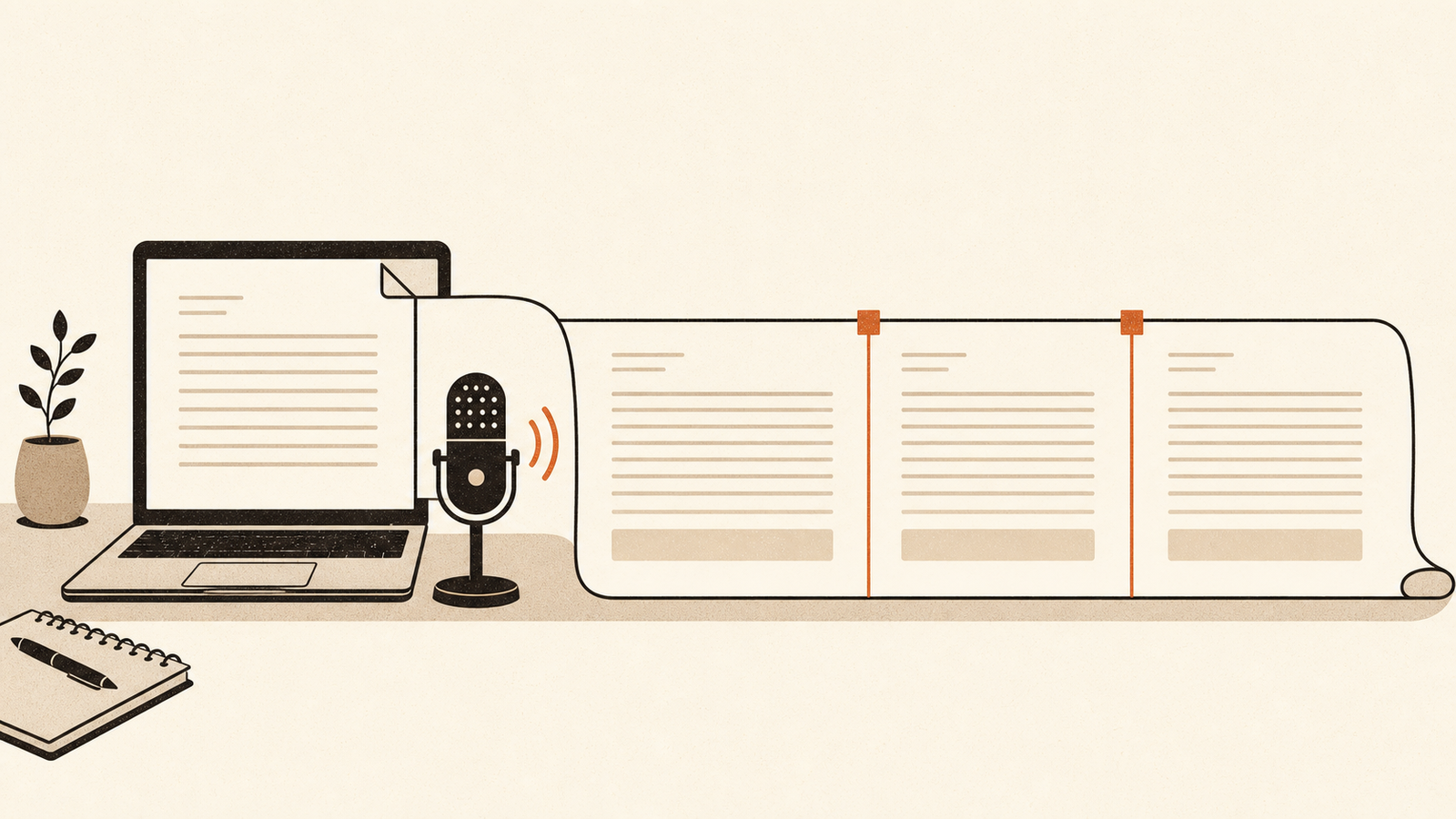
The best way to dictate a long document on a Mac is to stop treating it as one long dictation. Plan the outline first, dictate one section at a time, and edit afterwards. For long documents, transcription is only the first job. False starts, missing punctuation and weak paragraph breaks are what turn a quick draft into a slow clean-up.
That routine works for reports, briefs, essays and chapters, and you can run it this afternoon with the dictation that is already on your Mac. The rest of this guide covers the workflow, the voice commands that make formatting cheap, and the editing pass that keeps the job contained.
Long documents fail at clean-up, not transcription
Apple's current Dictation can accept text of any length, and some Mac users already use it for a large share of their writing. [1] One r/MacOS poster said they had dictated roughly 75 per cent of everything they wrote over two years. [4] A Hacker News commenter called Apple Dictation "actually pretty dang good" for regular use. [6] These are individual reports rather than controlled tests, but they show that long-form use is not a theoretical edge case.
A recent r/macapps thread makes the more useful distinction between "dictation accuracy" and "dictation workflow". One commenter split the work into fast capture, formatting clean-up and rewriting rough speech into polished prose. [5] The original poster had dictated much of the thread, then "had to go back and manually add most of the hyphens". [5] Another commenter opened with: "The hard part isn't transcription accuracy anymore". [5]
That is the whole thesis of this article. For a short message you can absorb the odd stray word. For a 5,000-word document, the false starts, the missing paragraph breaks and the punctuation that never arrived add up to an editing mess that can take longer than typing would have. The fix is to structure the work so the mess never accumulates.
Plan the document before you open the microphone
Write the headings before you open the microphone, then add one line under each heading saying what that section has to do. The result is both a map of the document and a prompt for each dictation session.
A 5,000-word report becomes ten sections of roughly 500 words. Each section is a short, self-contained dictation task: start dictation, speak the section, stop, move on. If a section is hard to say, that usually means it is hard to write, and the outline catches it before you have wasted a session on it.
Current macOS lets you dictate text of any length without a fixed timeout, so the software will not force you into sections. [1] The sectioning is for your benefit. Problems stay small when you fix them per section instead of discovering them all at once at the end.
Set up a session that keeps its stamina
A forty-minute session exposes problems that never matter in a short reply. Sort these out before you begin.
- Microphone. Use the best mic you have. Apple's guidance is to keep the microphone unobstructed, speak at a volume that is not too quiet or too loud, and reach for a headset microphone in a noisy or echoing room. [9]
- Typing while dictating. On Apple silicon Macs you can use the keyboard while dictation is still active; the cursor pauses its listening indicator while you type and resumes when you stop. [1] That is how you correct a name or drop in a number without ending the session.
- The 30-second pause. Dictation stops automatically when no speech is detected for 30 seconds. [1] That is an idle cutoff, not a length limit, but it will end a session mid-thought if you sit back to think. Restart with the same shortcut and continue from where the cursor is.
- Session noise. One Hacker News user reported that macOS Dictation muted other sounds while it was running, which made the feature unusable for them. [7] That is one person's setup, not a universal test result. If you need to hear another app while speaking, test this before committing to a long session.
- More than one language. If a document mixes languages, you can set up several under Keyboard, Dictation and switch between them as you dictate, either by clicking the language shown next to the cursor or with the Globe key. [1] That beats switching the whole system language mid-project.
Do not start polishing mid-session. If a name or number is wrong, correct it quickly by voice or keyboard and keep going. Leave punctuation, paragraph shape and sentence rewrites for the edit.
Voice commands that keep a long document structured
Auto-punctuation handles the ordinary marks. In supported languages, Dictation automatically inserts commas, full stops and question marks as you speak, and you can switch it off under Keyboard, Dictation if you want full control. [1] Availability varies by language and region, so check the feature availability page for your set-up. [3]
Spoken commands are for the structure that auto-punctuation cannot guess. These are the ones that matter for long documents, all documented by Apple: [2]
| You say | macOS enters |
|---|---|
| "full stop" or "period" | . |
| "comma" | , |
| "question mark" | ? |
| "new line" | one line break |
| "new paragraph" | a paragraph break |
| "tab key" | a tab |
| "caps on" | next phrase in Title Case |
| "all caps on" | next phrase in ALL CAPS |
| "numeral" | next phrase as a number |
| "quote" ... "end quote" | opening and closing quotation marks |
Let auto-punctuation handle ordinary full stops and commas, then speak the structure that it cannot infer. Say "new paragraph" between sections, "caps on" before a title and "quote" around reported speech. Auto-punctuation availability varies by language, so check your setup and run a short test before the full session. [2] [3]
One more thing to know: words the recogniser is unsure about are underlined in blue. You can click one and pick an alternative, either then or later. [1] Leave them alone during the session and deal with them in the editing pass.
Edit as a separate pass, not an interruption
Dictation produces a rough draft. Editing is a different job and deserves a separate sitting. Run it in three passes.
- Transcription pass. Fix the blue-underlined words, names, numbers and anything the recogniser got wrong. The r/macapps author described the same job: "Even with the best apps, I still need to go back and make corrections, especially if I use less-common words." [5]
- Structure pass. Check the headings, paragraph breaks, quotation marks and anything you formatted by voice. Add the formatting you skipped while speaking.
- Prose pass. Read the whole document aloud. For someone who writes by speaking, reading aloud is the most reliable way to hear where a sentence fights itself. Cut the words that sounded fine but read badly.
Budget for fine formatting rather than assuming dictation will preserve it. Hyphenation is one concrete example: the r/macapps author quoted above had to add most of the hyphens manually after dictating the post. [5]
The editing pass is also where a two-stage dictation app can help. ShoutFlow, for example, transcribes first and can run a separate clean-up stage that removes filler words and fixes punctuation before the text lands at your cursor. Its local path runs on the Mac; optional bring-your-own-key paths send the relevant stage directly to the provider you choose. The current public release requires an Apple silicon Mac with macOS 14 or later, and the licence is a one-off purchase. [8] That pipeline does not replace your edit. It reduces the mechanical work so you can spend more time on the prose.
The routine that works for a 5,000-word report
Put together, the workflow looks like the chart below. The sequence is deliberate: outline, then sections, then the three editing passes.
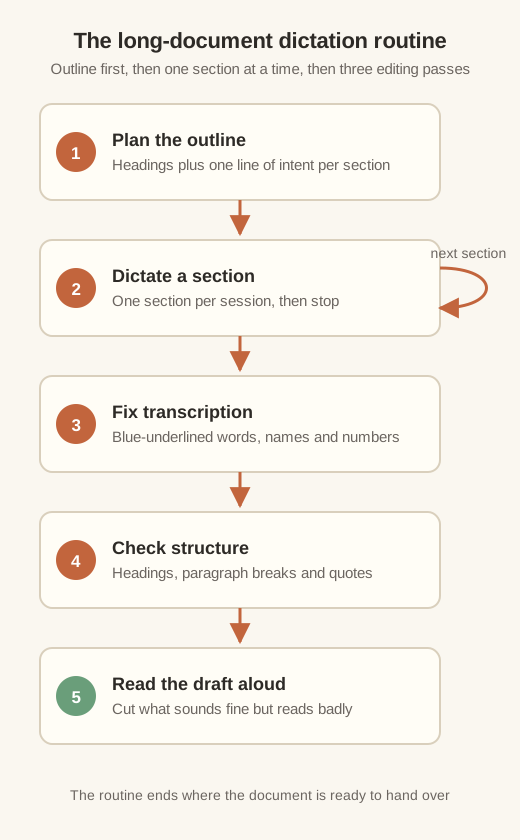
Run it like this:
- Write the outline: headings plus one line per section.
- Dictate section one. Stop at the end of the section, not mid-thought.
- Repeat for each section. Keep sessions short; ten short sessions beat one long one.
- Do the transcription pass across the whole document.
- Do the structure pass: headings, paragraphs, quotes.
- Read the whole thing aloud and fix what fights.
Start with one section tonight. A single dictated section that survives its editing pass teaches you more than a whole document that does not.